
Set up online bookings and shop discounts faster with Jimdo Companion
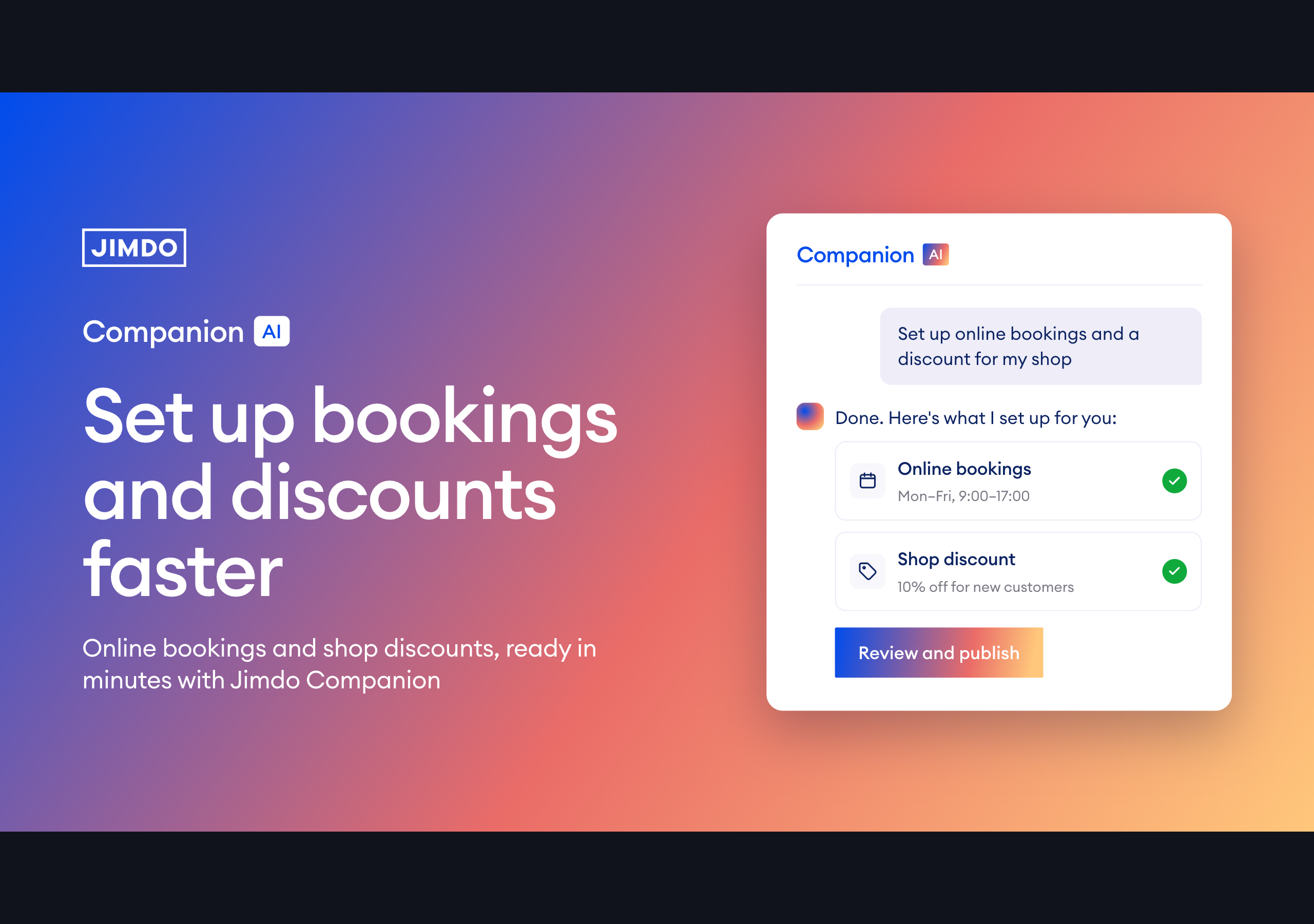


You offer appointments or sell products, and setting up the bookable service, the prices and a discount takes time you’d rather spend on the work you love. Jimdo Companion does that setup for you. You describe what you want, Companion prepares it, and nothing goes live without your yes.
This guide shows you what Companion sets up for your online bookings and your shop discounts, and which parts stay in your hands.
The key facts at a glance
- Jimdo Companion sets up your bookable services and events, and your shop discount codes, from a short description
- It prepares everything as a proposal first. Nothing changes or goes out without your yes
- You can edit anything Companion prepares, so it fits your business and sounds like you
- You can ask Companion to update your availability, like blocking a day you’re not available, or set it yourself in your Bookings settings
- Companion writes the announcement for a new offer or discount, you post it
- Companion is in the Jimdo Website Builder, not in Jimdo Creator. It’s included in every plan, the free plan too, and its AI runs in the EU
What is Jimdo Companion?
Jimdo Companion is an assistant for the business side of working for yourself, built into the Jimdo Website Builder. It has two parts: a dashboard that looks at your business data and suggests concrete next steps, and a chat where you hand over tasks and get things prepared. You describe what you need, Companion prepares it, and it does the supported parts once you say yes. Companion is included in every Jimdo plan, the free plan too, and its AI runs in the EU.
Set up a new offer, get it live, and promote it
Going from an idea to your first booking usually takes three steps. Companion helps with all three.
Set it up. Tell Companion what you offer, and it creates the bookable service or event, suggests a price that fits your time, and sets up payment and an enquiry form. Examples: “Set up a 45-minute intro call for 60 euros.” Or: “Set up the pottery workshop on 17 October at 10:00, two hours, eight places, 65 euros.”
Get it on your website. So visitors can book, the offer has to be on your page. You add the Bookings element to the page in the editor and publish. Companion prepares the offer, and you place it where you want it.
Promote it. Companion writes the launch for you: a social post, an email and a paragraph for your website. You review and post. Just add “and write me the announcement” to the same request.
One thing Companion doesn’t do: book a customer into a slot for you. If an appointment needs to move later, it can reschedule it and notify the participants.
Update your availability and block days off
Availability lives in Bookings, and you have two ways to manage it.
Ask Companion. Tell it when you’re out, for example “I’m not available next Wednesday, update my schedule.” Companion checks your classes and existing bookings for that day, blocks it in your Bookings calendar so no one can book a new appointment. If you already have bookings that day, Companion lets you know so you can move them. Or set it yourself in Bookings, under Settings:
- For a 1:1 service (open slot), set the hours you’re free for each day of the week. Your customers pick a time within that.
- For a fixed session, set the specific date and time.
- To block holidays or breaks, create an absence.
Good to know: your customers always see available times in their own local timezone, so people in different places may see different times for the same slot. That’s expected.

Create a shop discount, and the words to announce it
Companion sets up a discount code for your shop and drafts the announcement in the same conversation.
Example: “Create the discount code WELCOME10 for 10 percent off and write a short announcement text.” Companion creates the code, as a percentage or a fixed amount, and prepares the post and email to go with it.
What to keep in mind: the discount is active right away, with no end date, no usage cap and no product scope. If you want it to run only for a while, you end it yourself. The announcement is ready for you to review, adjust and post wherever you want.
How Companion works: nothing without your yes
Companion doesn’t act on its own. Before anything changes, it shows you a card with what it plans to do, and nothing happens until you say yes.
- Website text and SEO details come as drafts. You publish.
- For money and messages, there’s a second check, so nothing goes out by accident.
- The only things Companion sends are invoices, payment reminders and appointment changes. Posts and announcements it writes, you post them.
Only in the Jimdo Website Builder
Companion is built into the Jimdo Website Builder (Dolphin) and works from the business data it needs for its suggestions. Everything is based on your data and tailored to you and your business needs.
Companion is included in every plan, even the free plan. Some actions need a paid plan. If you’d like to try it, you can create a free website with the Jimdo Website Builder.
How to start
Open your website in the Jimdo Website Builder. You’ll find Companion at the top of the page. Open it and describe what you need in the chat,for example “I want to offer a new 1:1 coaching and give returning clients 10 percent off.” Companion prepares the service and the discount, shows you the proposal, and you approve what fits. Need to block a day you’re out? Just tell Companion, for example “I’m not available next Wednesday.”
Frequently asked questions
What is Jimdo Companion?
Jimdo Companion is an AI assistant for the business side of working for yourself, built into the Jimdo Website Builder. It has a dashboard with suggestions from your data and a chat where you hand over tasks and get things prepared. It’s included in every Jimdo plan, the free plan too, and its AI runs in the EU.
What does Jimdo Companion set up for my bookings?
From a short description, Companion creates a bookable 1:1 service or a workshop event, suggests a price, sets up payment and an enquiry form, and writes the launch text. It can also reschedule an existing appointment and notify the participants. You review and publish.
Can Companion update my availability?
Yes. You can ask Companion to update your availability, for example “I’m not available next Wednesday, block that day.” Companion checks your classes and bookings first, then blocks the day in your Bookings calendar so no open-slot lesson can be booked, and tells you it’s done, in your time zone. You can also manage your availability yourself in your Bookings settings.
What kind of shop discounts can Companion create?
Companion creates a discount code as a percentage or a fixed amount, and drafts the announcement. The discount is active right away, with no end date, no usage cap and no product scope, so you end it yourself when you want it to stop.
Does Companion do anything without my approval?
No. Companion shows you what it plans to do first, and only does it after you say yes. Website changes come as drafts. The only things Companion sends are invoices, payment reminders and appointment changes.
Do I need a paid plan for Companion?
Companion is included in every Jimdo plan, the free plan too. Some actions may need a paid plan.
Is Companion available in Jimdo Creator?
No. Companion is currently only available in the Jimdo Website Builder, not in Jimdo Creator.
Is my data safe with Companion?
Companion’s AI runs in the EU. It only works with your business data, like your bookings, products and contacts, when you ask it to, and it acts inside your own Jimdo. Nothing changes or is sent without your approval, so you stay in control. For details on data protection, see Jimdo’s privacy information.
Is Companion personalized to my business?
Yes. Companion works from your own business context already in Jimdo, your offers, your website, your bookings and your data, so its suggestions and drafts are specific to your business rather than generic. It also remembers preferences you share over time, and you can see and change what it remembers. You still decide on audience, tone and terms.
Build a strong business with Jimdo.
Create a website and get found, get booked, get paid – all in one place.

🚀 Ready to take your business online?
No credit card needed. Online in minutes.